Switching to the Dvorak Keyboard Layout on NEOS75: Why Low-Profile Keycaps Make a Difference
Changing from QWERTY to the Dvorak keyboard layout is relatively straightforward from a software perspective. The challenge often comes when users want to rearrange their physical keycaps to match the new layout. On conventional mechanical keyboards, moving keycaps between rows can create uneven heights and inconsistent typing angles.
The AULA NEOS75 offers a different approach. Its low-profile switches and flat keycap design reduce the height differences commonly found in standard MX keyboard profiles, making physical keycap rearrangement more practical.
This article looks at three important aspects of Dvorak customization: the difference between software remapping and physical keycap replacement, why traditional sculpted keycaps can cause problems when changing layouts, and how to configure the Dvorak keyboard layout on the NEOS75 using AULA's A HUB 3.0 software.
1. Remap Output vs. Swap Keycaps: Two Different Operations
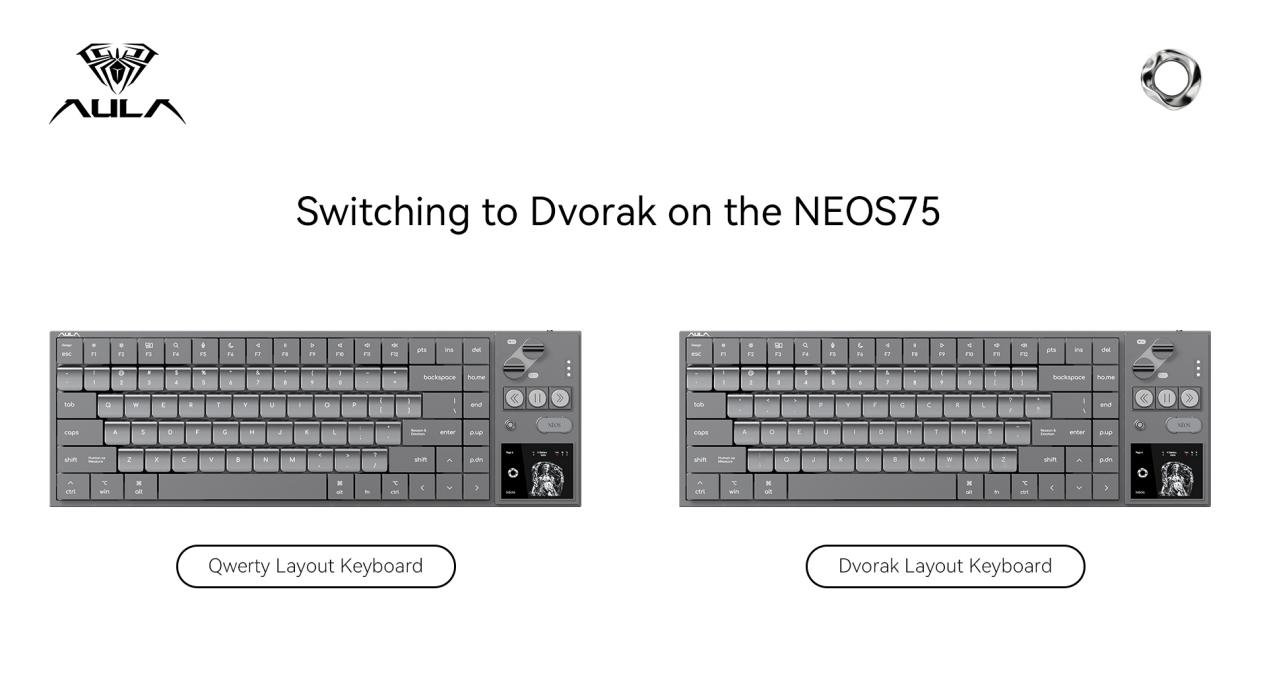
When switching to the Dvorak keyboard layout, it is important to distinguish between character output and the physical keycap legends. Although these two elements work together during typing, they are controlled separately.
Character output is controlled by software or firmware.
The character registered when you press a key is determined by the keyboard's key mapping configuration. For example, the physical Q position on a QWERTY keyboard can be remapped to output an apostrophe under Dvorak. This change does not require any hardware modification.
Keycap legends are physical markings.
The characters printed on keycaps do not change when you remap a keyboard. If the Q-position key is reassigned to output an apostrophe, the original Q marking remains visible. To make the legends match the new layout, users can rearrange compatible keycaps, use a different set of keycaps, or apply stickers. Hot-swappable switches are another feature that should not be confused with keyboard layout customization. Switch swapping changes the typing feel and acoustics, such as linear or tactile feedback, but does not change character output.
The NEOS75 supports full-key hot swapping between three AULA × Kailh custom low-profile switch variants. However, converting from QWERTY to Dvorak still requires software remapping. Physical keycap rearrangement is a separate step for users who want the printed legends to match their new layout.
2. What Makes the Dvorak Keyboard Layout Different?
Designed by August Dvorak and William Dealey, the Dvorak Simplified Keyboard was finalized in 1932, patented in the United States in 1936, and adopted as an alternative standard by ANSI in 1982.
Unlike the traditional QWERTY arrangement, the Dvorak keyboard layout positions frequently used English letters according to letter frequency and finger movement.
The vowels A, O, E, U, and I are placed on the left-hand home row, while commonly used consonants such as D, H, T, N, and S are positioned on the right-hand home row. This arrangement is intended to increase home-row usage and reduce unnecessary finger movement.
Approximately 70% of English keystrokes are associated with the home row in Dvorak, compared with around 32% in QWERTY, according to the figures cited in the original layout comparison.
There are two practical considerations before switching:
Typing speed and comfort: Dvorak is designed to reduce some finger movements and may offer a more comfortable typing experience for certain users. However, improvements in typing speed are generally modest. Controlled studies have reported only single-digit percentage differences for proficient typists. Writing speed also depends on thought processes, familiarity, and typing consistency.
Learning curve: Users need time to develop new muscle memory. Many may require approximately 4–8 weeks to approach their previous typing speed, although the actual period varies. Keyboard shortcuts can also feel unfamiliar during the transition.
Dvorak is designed primarily for English typing. Chinese input methods rely on their own input systems, so changing the alphabet layout does not directly change how Chinese IMEs work.
3. The Classic MX Keyboard Limitation: Sculpted Keycaps Can Become Uneven
One of the main difficulties with physically rearranging keycaps on standard mechanical keyboards comes from sculpted keycap profiles.
Conventional MX keycap sets often use different heights and angles for each row. The top row is typically taller and has a steeper angle, while the rows below it gradually change height and curvature to follow the natural movement of the fingers.
This design works well when keycaps remain in their original QWERTY positions. However, when users move them between rows to match a Dvorak keyboard layout, the original profile differences remain.
For example, moving a keycap designed for the A row to a switch in the S row does not change its original height or curvature. This can lead to several problems:
Uneven keycap heights across different rows.
Inconsistent keycap angles and finger landing positions.
A less uniform appearance after rearrangement.
Possible interference between neighboring keycaps.
For this reason, physically rearranging sculpted MX keycaps is not always the best solution for Dvorak customization. A more practical approach for many standard-height mechanical keyboards is to use software remapping while keeping the original keycap positions. Other options include blank keycaps or a dedicated Dvorak keycap set. The limitation comes from the keycap profile being designed for specific row positions, rather than from the Dvorak layout itself.
4. Why the NEOS75 Low-Profile Design Avoids This Problem
The AULA NEOS75 is a 75% low-profile mechanical keyboard with an 84-key layout and a full-aluminum chassis. Its construction differs from conventional MX keyboards and makes compatible keycap rearrangement more practical.
4.1 Flush Low-Profile Switches and Flat Keycaps
Low-profile switches have a shorter overall height and reduced travel distance compared with many standard mechanical switches. On the NEOS75, the switch structure is paired with flat-profile low-profile keycaps that have less pronounced height differences between rows.
When compatible alphanumeric and punctuation keycaps are rearranged, the flatter profile helps maintain a more consistent surface instead of creating the dramatic stepped appearance often associated with sculpted MX keycaps.
This makes the NEOS75 particularly suitable for users who want to combine software-based Dvorak remapping with physical keycap rearrangement.
However, low-profile keycaps are not all interchangeable. Larger keys such as Space, Shift, Enter, and other stabilizer-supported keys have different dimensions and structures. Only compatible standard-sized alphanumeric and punctuation keycaps should be moved.
After rearranging the keycaps, check that they are properly seated and that each key can move freely without binding.
4.2 NEOS75 Hardware Specifications
Beyond its low-profile design, the NEOS75 includes several hardware and customization features:
Chassis: CNC-machined full-aluminum frame with custom low-profile aluminum keycaps, finished through anodization or electrophoretic coating.
Switches: AULA × Kailh custom low-profile switches in three variants: Feiyun (Linear), Chayun (Heavy Tactile), and Jingyun (Silent).
Hot swapping: Full-key hot-swappable switch design.
Acoustics: Gasket mount structure with six layers of sound-dampening materials, including PORON switch sandwich foam, IXPE switch pad, PET sound-absorbing sheet, PORON socket foam, bottom PORON foam, and PET base foam.
Display: 2.3-inch 480 × 360 color display for real-time keyboard information and custom graphics.
Controls: Metal rotary knob and dedicated media hotkeys.
Connectivity: Tri-mode connection through wired, 2.4GHz wireless, and Bluetooth.
Battery: Built-in 4200mAh battery.
Polling rate: 1000Hz over wired and 2.4GHz connections, and 125Hz over Bluetooth.
Software: A HUB 3.0 supports key remapping, hotkeys, lighting customization, and keyboard settings. VIA compatibility is also supported.
System compatibility: Windows, macOS, Linux, and Android.
Color options: Venus Silver, Selene Gray, Hades Black, and Athena White.
These specifications make the NEOS75 a customizable low-profile keyboard for users who want to adjust both typing configurations and the physical keyboard setup.
5. Tutorial: Remap to Dvorak with AULA's Official Software
The Dvorak setup process on the NEOS75 involves two main stages: changing character output through software and adjusting the physical keycap legends if needed.
A HUB 3.0 provides the key remapping functions required for this process. The following steps explain how to create and configure a separate Dvorak profile.
Step 1: Download Software from the Official AULA Website
Visit the software download section on AULA's official website and select the NEOS75.
The keyboard uses A HUB 3.0. Depending on the available version, users can launch the browser-based software through a wired connection or install the desktop client by following the official instructions. VIA is also supported.
A few points are worth checking before setup:
Use a wired connection during remapping to reduce the possibility of wireless detection problems.
Download the software only from official channels.
Avoid unfamiliar third-party driver packages.
Step 2: Create a New Preset Instead of Overwriting QWERTY
Open the Key Mapping panel and create a new profile named Dvorak.
Keep the original QWERTY configuration unchanged. Having separate profiles makes it easier to switch between layouts and provides a backup if you want to return to the default arrangement.
Step 3: Remap Keys One by One
Select each physical key position and assign its corresponding Dvorak character.
The following reference list shows the character assignments for the alphabetic and punctuation keys. Number and function keys can remain unchanged.
Physical QWERTY Key → Dvorak Output
Q → '
W → ,
E → .
R → p
T → y
Y → f
U → g
I → c
O → r
P → l
[ → /
] → =
A → a
S → o
D → e
F → u
G → i
H → d
J → h
K → t
L → n
; → s
' → -
Z → ;
X → q
C → j
V → k
B → x
N → b
M → m
, → w
. → v
/ → z
Some letters, including A, E, I, O, N, and T, also appear in the QWERTY layout but occupy different physical positions under Dvorak. Make sure each assignment is based on the physical key position rather than the printed character on the keycap.
Step 4: Save to On-Board Memory and Back Up the Profile
After completing the remapping, save the Dvorak preset and follow the software instructions to apply it to the keyboard's on-board memory.
Saving the configuration to the keyboard helps ensure that the layout is not limited to the current computer. If the software supports account synchronization or profile backup, keep an additional copy so the configuration can be restored after a system reinstall or device change.
Step 5: Validate with Typing and Punctuation Tests
Open a text editor and type a complete sentence without looking at the keycaps. Then test punctuation marks, brackets, and other frequently used symbols.
If a character does not appear correctly, return to the key mapping panel and check the individual assignment. Correcting a specific key is usually more efficient than restarting the entire configuration.
Step 6: Create a Separate Gaming QWERTY Profile
Some games use QWERTY-based key prompts and control assignments. When the keyboard is configured for Dvorak, the physical key positions may no longer correspond to the controls displayed in the game.
Creating a separate Gaming QWERTY profile solves this problem. Users can switch to QWERTY before playing and return to Dvorak for everyday typing.
Keeping both profiles on the NEOS75 makes it easier to use one keyboard for different tasks without repeatedly changing the entire key mapping.
6. Three Approaches for Matching Keycap Legends
Software remapping controls character output, while physical keycaps provide the visual reference. After configuring Dvorak, users can choose from three approaches depending on their preference and how much customization they want.
Option 1: Keep the Original Keycaps
This is the simplest option. Keep the stock low-profile keycaps in their original positions and use the Dvorak profile through keyboard software. The printed legends will not match the actual character output, but this approach requires no additional cost or physical modification. It also makes switching back to QWERTY straightforward.
For users who rely on touch typing, the mismatch between printed legends and character output may become less important as they become familiar with the new layout.
Option 2: Physically Rearrange Compatible Low-Profile Keycaps
This is one of the practical advantages of the NEOS75 low-profile design.
Users can rearrange compatible alphanumeric and punctuation keycaps to match the Dvorak layout. Because the low-profile keycaps have less pronounced row-height differences, they avoid much of the uneven appearance commonly found when rearranging sculpted MX keycaps.
However, larger keys such as Space, Shift, Enter, and Backspace should remain in their original positions unless their dimensions and mounting structures are confirmed to be compatible.
After moving the keycaps, check their seating and make sure each key operates without interference.
Option 3: Install a Full Dvorak Legend Low-Profile Keycap Set
For users who want the printed legends to match the actual character output, a compatible Dvorak low-profile keycap set or dedicated keycap stickers provide another option.
Before purchasing replacement keycaps, verify the switch stem, profile, dimensions, and mounting specifications. Low-profile keycaps are not automatically compatible with standard MX keycaps.
The NEOS75 uses aluminum keycaps, which also have different weight characteristics from many conventional plastic keycaps. Users should consider switch compatibility and long-term mechanical wear when choosing replacement components.
7. Learning Timeline and Trade-Offs
Switching to the Dvorak keyboard layout requires time and regular practice. The following stages provide a general reference for how users may adapt to the new arrangement.
Day 1 – Learning Key Positions
Users may struggle to locate individual characters and need to pause frequently while typing.
Day 3 – Basic Touch Typing
Typing without looking at the keyboard becomes more manageable, but mistakes remain common. Users may still revert to QWERTY when typing under time pressure.
Week 2 – Developing Muscle Memory
Common words and letter combinations become easier to type. Punctuation marks and keyboard shortcuts may still require additional practice.
1–2 Months – Approaching Previous Typing Speed
With consistent practice, users may gradually approach their previous QWERTY typing speed. The actual time required depends on individual habits and how frequently the new layout is used.
There are also several trade-offs to consider before making the switch.
Other people who borrow the keyboard may find the Dvorak arrangement unfamiliar. Users may also feel temporarily disoriented when working on standard QWERTY computers in public places or shared offices.
For jobs involving frequent numeric data entry, changing the alphabet layout may provide limited practical benefit. Common shortcuts such as Ctrl+C and Ctrl+V can also require an adjustment period because finger positions may feel different. The decision to adopt Dvorak should therefore depend on individual typing needs, not simply the expectation of faster typing.
8. Who Is This Modification For?
Switching to Dvorak on the NEOS75 is most suitable for users who have a clear reason to explore alternative keyboard layouts and are willing to spend time adapting.
Ideal Candidates:
Daily heavy typists who experience finger fatigue and want to reduce some of the longer finger movements associated with their current layout.
Keyboard enthusiasts who are comfortable spending several weeks learning a different typing arrangement.
Users who prefer low-profile switches, flatter keycaps, and a compact desktop setup.
People who want a customizable 75% keyboard with software-based key remapping and separate typing profiles.
Not Recommended For:
Users who have not yet mastered QWERTY touch typing. Improving familiarity with the existing layout may provide greater practical benefits before learning another one.
People who frequently use shared or public computers where the Dvorak configuration may not be available.
Users whose daily work mainly involves continuous numeric data entry, where changing the alphabet layout offers limited advantages.
The NEOS75 combines a low-profile mechanical design with customizable key mapping, making it a practical option for users interested in alternative typing layouts. Its flatter keycaps help reduce the unevenness associated with rearranging conventional sculpted keycaps, while A HUB 3.0 provides the software tools needed to configure and manage different keyboard profiles.