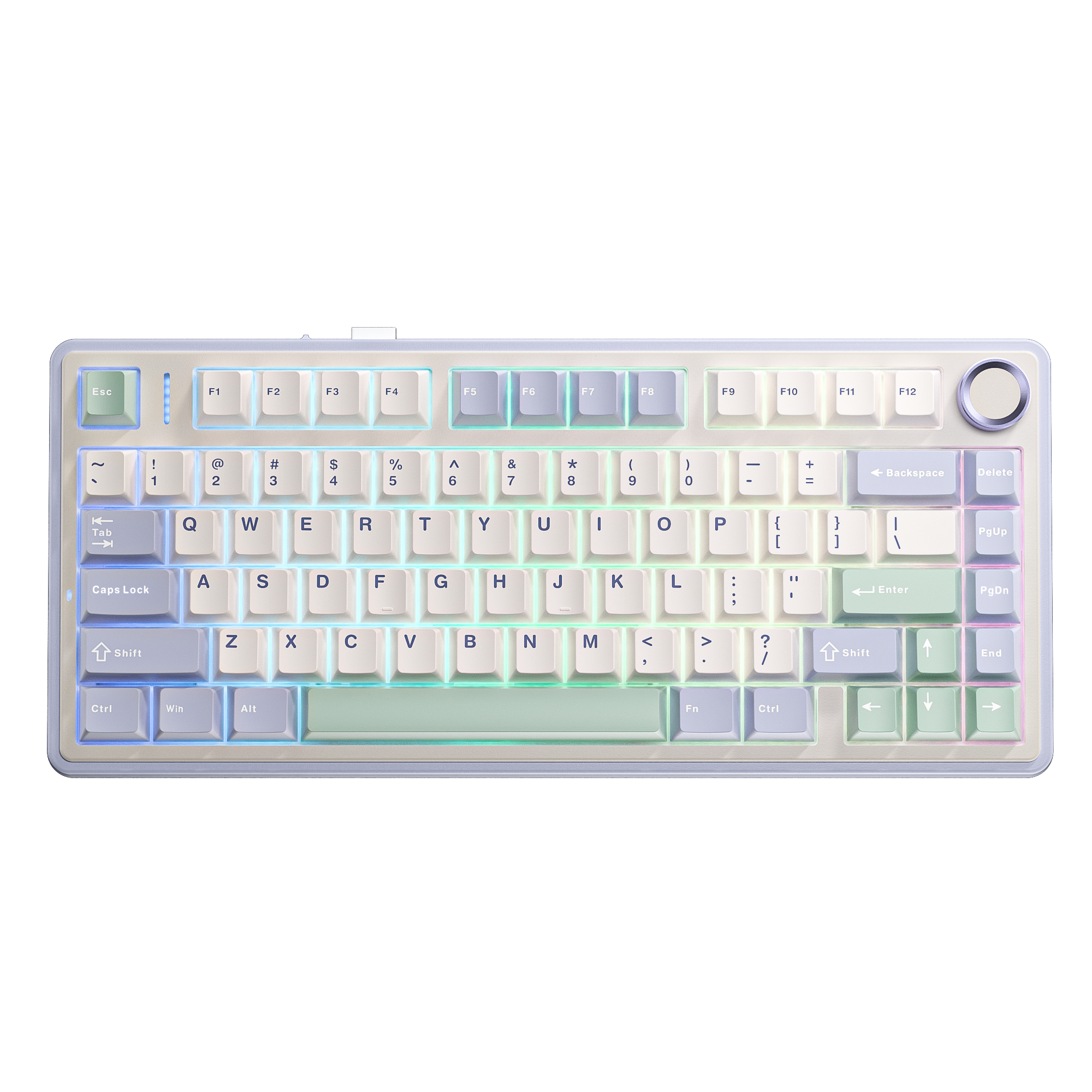
From QWERTY to Dvorak Keyboard Layout: How Far Can a Keyboard Be Customized?
Here’s a counterintuitive fact: the letter arrangement you type on today was engineered for typewriters back in 1873. Its purpose was to stop type bars from jamming, not to deliver ergonomic typing comfort.
A century and a half has passed, with hardware iterating through generations, yet this layout still dominates. This spawned a niche but passionate community: layout modders.
This article covers three core topics: the variety of keyboard layouts, what makes Dvorak unique, and how to flash it onto an AULA keyboard (spoiler: no paper cutouts or keycap stickers required).
1. How Many Keyboard Layouts Exist?
There is no fixed count, and new variants emerge annually. A Windows installation with full language packs includes hundreds of layout variants; Linux’s xkb database is on the same scale. Layout editors such as MSKLC, Ukelele and Keyboard Layout Editor let anyone build a custom layout within an afternoon.
A more practical way is to categorize layouts by their design intent:
Inherited National Standards
QWERTY: Designed in 1873 by Sholes / Remington to prevent type-bar jamming. Default for North America, the UK and most export keyboards.
QWERTZ: Used in German-speaking regions (Germany, Austria, Switzerland), with derivative variants for Czech, Slovak and Hungarian. It swaps Y and Z and adds diacritic characters.
AZERTY: Standard for France and Belgium (Belgian variant has different numeral-row and symbol placements). A/Q and Z/W are swapped, while M is relocated beside the semicolon. France formalized the revised AZERTY alongside Bépo under AFNOR NF Z71-300 in 2019.
English-Focused Ergonomic Layouts
Dvorak: Finalized by August Dvorak and William Dealey in 1932, patented in 1936, and approved as an ANSI alternate standard in 1982. All five vowels A O E U I sit on the left home row, and the five most frequent consonants D H T N S on the right. Roughly 70% of English keystrokes land on the home row, versus only ~32% for QWERTY.
Colemak: Launched in 2006. It retains Dvorak’s ergonomics while preserving Z X C V and most punctuation positions, so Ctrl+Z muscle memory stays intact.
Workman: Released in 2010, optimized for lateral finger travel and same-finger chording.
DVP: A Dvorak sub-layout created by Roland Kaufmann in 2006. The focus of this article, detailed below.
Layouts Built for Other Languages
Bépo: French community layout developed from 2003, following Dvorak’s design philosophy. Standardized under AFNOR in 2019.
Neo: German layout introduced by Hanno Behrens in 2004. It uses a six-layer structure; brackets, operators, Greek and mathematical symbols reside on upper layers, accessed via remapped modifiers instead of heavy Shift combinations.
Turkish F: National standard designed in 1955 under İhsan Sıtkı Yener, holder of 17 world records in shorthand competitions. It never overtook Turkish QWERTY, a valuable reminder: a superior layout does not guarantee mainstream adoption.
Non-Latin scripts include Russian ЙЦУКЕН (JCUKEN), Greek, Hebrew, Arabic, dual-set Hangul, Kana, Bopomofo and Cangjie, each rooted in its own history and character frequency data.
Hardware-coupled layouts: Maltron (Lillian Malt, 1977). Keys are contoured to match finger lengths; the Mark II model supports one-click QWERTY fallback.
Layout-agnostic hardware: Optimus Maximus (2008). Every keycap integrates a tiny display, which updates its legend to match the loaded layout.
Finally, custom community builds: home-row mods, 34-key layered setups, chorded layouts… No central registry, no official standards and no upper limit. This is why there is no definitive number for total layouts.
2. DVP Dvorak Layout: Shift-Free Symbol Placement
Kaufmann’s core premise was straightforward: classic Dvorak optimized letter positions but left symbols stuck in QWERTY’s awkward placements. Developers coding in C, C#, Java, Pascal, Lisp, CSS and XML still stretch their pinky for { } [ ] =.
He re-analyzed symbol co-occurrence from real source code corpora and repositioned them following Dvorak’s original ergonomic rules. Letter positions remain unchanged; only the numeral row and punctuation are rearranged.
The core design rule: symbols are base-layer, numerals are Shift-layer. Numerals are split between hands by odd/even parity, following Dvorak’s original rule: odd digits for the left hand, even digits for the right.
| Physical Key | Base Output | Shift Output |
|---|---|---|
| Grave (left of 1) | $ | % |
| 1 | & | 7 |
| 2 | [ | 5 |
| 3 | { | 3 |
| 4 | } | 1 |
| 5 | ( | 9 |
| 6 | = | 0 |
| 7 | * | 2 |
| 8 | ) | 4 |
| 9 | + | 6 |
| 0 | ] | 8 |
| - | ! | ' |
| = | # | " |
Developers will immediately recognize the benefit: brackets, braces, comparison and arithmetic operators — characters typed hundreds of times daily — become single Shift-free keystrokes assigned to fixed fingers. Numerals, typed far less often than = or (, are relegated to Shift, harking back to typewriter conventions.
Additional refinements:
Paired symbols split across hands: ( and ) assigned to left and right index fingers for natural alternating strokes. [ goes to the pinky and ] to the ring finger (deliberately different fingers, as ] is frequently followed by + or -; same-finger placement creates awkward motion). { } stay paired and are not split for symmetry.
; relocated to an easily accessible position (swapped with quote). Semicolons terminate statements in most programming languages and deserve index-finger access.
< > moved to base layer; , and . shifted to the Shift layer.
The extra key on ISO keyboards (left of Z) acts as a Compose key in DVP, used to generate diacritic characters.
Right Alt is not used as AltGr (this is native DVP system-level behavior; Windows users use Ctrl+Alt as a substitute). Remapping in the AULA driver leaves your Alt key untouched; you may reassign it as needed.
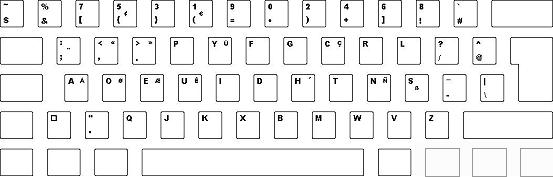
3. A Common Pitfall: ANSI vs ISO Layout
This determines whether you end up with an "orphaned unused key" after configuration.
ANSI: Dominant in North America and mainland China, 104-key, wide Enter.
ISO: Standard across most of Europe, 105-key, extra key left of Z, reversed-L Enter.
JIS: Japanese standard, additional keys, shortened spacebar.
DVP is designed for 104-key ANSI and works out of the box on ANSI boards. On ISO boards, that extra key is assigned as the Compose key. Confirm your form factor first before deciding its function. Within the AULA driver, you can reassign this key freely — Compose is optional; it can function as a standard key.
4. AULA’s Solution: Let the Keyboard Handle the Complexity
Most online DVP tutorials rely on a makeshift workaround: measure keycap dimensions (typically 14.5mm×14.5mm), cut cardstock, handwrite legends and glue them on. Dvorak keyboards are niche, and DVP legends are nearly impossible to source as aftermarket stickers.
This method only fixes the legend, not the input mapping. It has a critical flaw: keycaps are sculpted per row profile. Row 1 sits higher and angles differently from Row 4. Swapping an A keycap onto an S position creates uneven height, degraded tactility and potential key collision. Physical keycap rearrangement is fundamentally unworkable.
AULA separates the two challenges: Layout lives in firmware, not plastic. Launch A HUB, AULA’s proprietary driver downloaded from the official site (http://hub.aulacn.com; compatible with Chrome / Edge / Opera, auto-detects devices over wired connection). Rebind per-key output in the key-mapping panel and save the profile to on-board memory. The layout travels with the keyboard. No reinstallation is required on new PCs, and system layout support is unnecessary.
For clean legends, better options exist than paper cutouts. Blank keycaps, pre-printed Dvorak legend sets, or simply accepting mismatched legends. Output is governed by firmware; keycaps are only visual cues. If you want markings, use commercial stickers — avoid white glue.
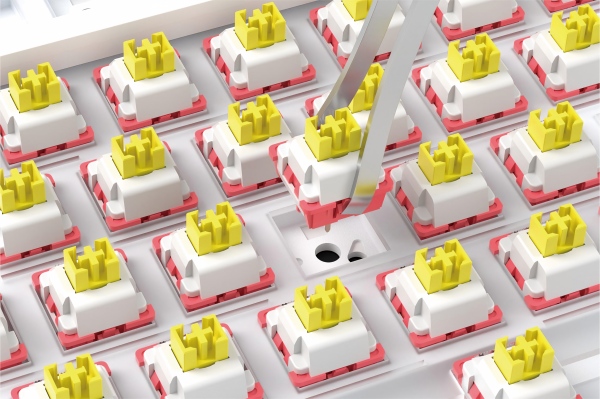
Tactility via hot-swappability. Expect frequent misstrokes in the first two weeks of learning a new layout. Light linear switches (short pre-travel, snappy rebound) are less fatiguing than heavy tactile switches. Most AULA mechanical boards feature 3/5-pin MX-compatible hot-swap sockets (F65, F75, F81, F87 Pro, F87 Pro V2, F99, F99 Pro, etc.). Switches can be swapped without soldering.
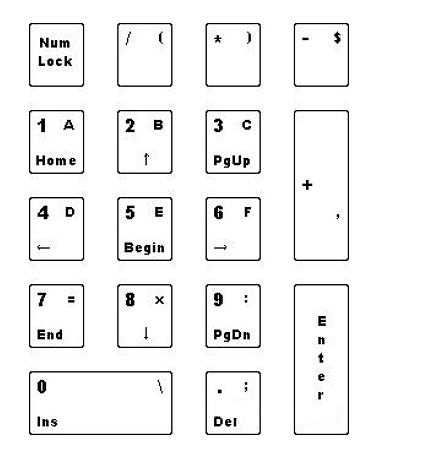
Numpad considerations. DVP swaps the numpad digit rows (123 ↔ 789) and places hexadecimal A–F on the Shift layer, decoupling NumLock from Shift. Important note for Windows: the OS hardcodes numpad direction-to-digit mapping, so numpad navigation mode will break. Use dedicated arrow keys for navigation. Numpad behavior functions normally under Linux. If you work extensively with spreadsheets, keep a QWERTY profile handy to avoid frustration.
5. Step-by-Step: Flash DVP via AULA’s Official Driver
Key premise: this layout is flashed directly to the keyboard, not installed as an OS layout. No third-party layout packages are needed, and you do not depend on OS/IME layout support. A HUB is built for this exact remapping workflow.
The whole process takes roughly 20 minutes, and the profile persists across devices once saved.
Download the driver from AULA’s official siteNavigate to Support → Driver Download on the AULA website and select your keyboard model. Two options are available:
Web-based A HUB (Driver 3.0): No local install required. Open http://hub.aulacn.com in a compatible browser and connect via wired USB for auto-recognition. Profile sync is available with account login. Supported models include current Hall-effect series (HERO 68 HE, HERO 75 HE, HERO 84 HE, WIN 60/68 HE, AG60/AG63/AG75, MINI 60 HE, etc.) and mechanical boards (F75, F87, F87 Pro V2, F99, F108 Pro V2, etc.).
Windows desktop client: Download and install from the same page for older mechanical models. Core functionality matches the web version.
Create a new profile firstOpen the key remapping panel and create a new profile named Dvorak DVP. Leave your original QWERTY profile untouched. It serves as a fallback for urgent typing and guest users.
Rebind the alpha sectionAlpha keys follow standard Dvorak positioning:
Home row: A→a, S→o, D→e, F→u, G→i, H→d, J→h, K→t, L→n, ;→s
Top and bottom rows: Remaining letters aligned per official Dvorak diagram: p y f g c r l on the right top row; q j k x b m w v z on the bottom row
Leave these unmodified: Tab, Caps Lock, Shift, Ctrl, Win, Backspace, Enter
Workflow: Click the on-screen physical key, then assign its target output. Rebind the 33 alpha and punctuation keys one by one to complete the alpha section.
Rebind the numeral row and Shift layersMap the 13 numeral-row keys to the table in Section 2: symbols on base layer, numerals on Shift.
Base-layer symbols: $, &, [, {, }, (, =, *, ), +, ], !, #
Shift-layer values: 7, 5, 3, 1, 9, 0, 2, 4, 6, 8 and supplementary Shift punctuation
Assign Shift-layer characters using the driver’s combo mapping function: Source Key → Shift + Target Character. This is the standard remapping method within A HUB; no extra third-party tools are required.
Save profile and write to on-board memoryClick Save / Apply, then flash the profile to on-board memory. This determines whether the layout travels with the keyboard or only applies to the current PC. Sync the profile to your account for easy recovery after reboots or device changes.
Validate, do not rely on muscle memoryRun a typing test blind, then write code with brackets and semicolons in a text editor. If output matches, the mapping is valid. Single-character errors only require correcting that one binding — no full reset.
Configure numpad and keycaps as desired
Numpad: Apply DVP digit swapping and hex A–F Shift bindings. Remember Windows numpad navigation limitation.
Keycaps: Output is controlled by firmware; legends are optional. Use blank keycaps or Dvorak legend sets for aesthetics, or keep stock caps. Paper and glue are not recommended.
Create a gaming profileIn-game UI prompts are QWERTY-based and will mismatch your remapped keys. Build a separate Gaming / QWERTY profile and switch to it with one click before launching games. Use DVP for typing, QWERTY for gaming, on the same board.
Scope Limitation Driver remapping controls character output and supports combos for nearly all DVP use cases. It is not a full OS layout engine. If you need to replicate system-level behavior such as Compose and AltGr, you will need an OS layout alongside it. For everyday remapping, the driver is sufficient.
6. Learning Curve: What It Feels Like on Day 3
| Stage | State | Common Experience |
|---|---|---|
| Day 1 | Total disorientation | Every character requires conscious position recall |
| Day 3 | Touch typing possible, slow | Speed triggers QWERTY fallback; old muscle memory conflicts |
| Week 2 | Chunked recall for common words | Speed recovers; errors are mostly punctuation |
| 1–2 Months | Near original WPM | Shortcuts become intuitive; no habitual key glances |
Day 3 is a notable milestone: you have not fully learned the layout, but two competing muscle-memory sets are active. Do not rush. Prioritize blind, deliberate typing to build the new neural pathway.
Practice tip: 10–15 minutes daily yields better results than marathon weekend sessions. Practice with real writing — emails, code, notes — not only typing drills.
7. Tradeoffs: Real Expectations
Your keyboard is unintelligible to other users. Colleagues assisting on your machine may assume the keyboard is faulty.
You struggle on foreign PCs. Borrowed laptops feel disorienting for the first ten minutes.
Numerals require Shift. Spreadsheet data entry and number dialling slow noticeably. DVP is not recommended if numeric input is your primary workflow.
Shortcuts require re-learning. Ctrl+C / Ctrl+V physical positions stay fixed, but finger motion changes. Editor on-screen hints will mislead you temporarily.
English-centric design. Chinese input is unaffected by letter order (handled by IME), but IME hotkey muscle memory will be disrupted. For other languages, use their dedicated layouts (Bépo for French, Neo for German).
8. For Enthusiasts Who Love Tweaking
QWERTY is entrenched and will remain dominant for the foreseeable future. That does not stop you from tuning your own keyboard for a more natural fit.
Some argue the effort is not worthwhile: weeks of adaptation for marginal finger-travel savings, plus disruption to people around you. The argument holds merit. But custom peripherals are not purely about raw efficiency. The feeling of using a tool tuned uniquely for your hands is something metrics cannot quantify.
AULA lowers the barrier to experimentation: firmware-stored layouts, hot-swappable switches, interchangeable keycaps, and one-click QWERTY fallback profiles.
The rest is up to you.
FUEL YOUR PASSION.