L99
L99
Firmware updates are one of the easiest ways to keep your AULA keyboard performing at its best. The latest firmware can improve stability, optimize compatibility, resolve known issues, and enhance your overall gaming experience.
This guide walks you through the complete firmware update process, including both the keyboard firmware and the screen firmware update.
Before You Begin
Before starting the update, make sure you have:
A Windows PC
The downloaded AULA L99 firmware package
A USB cable for a stable wired connection
Enough time to complete the entire process (approximately 10–15 minutes)
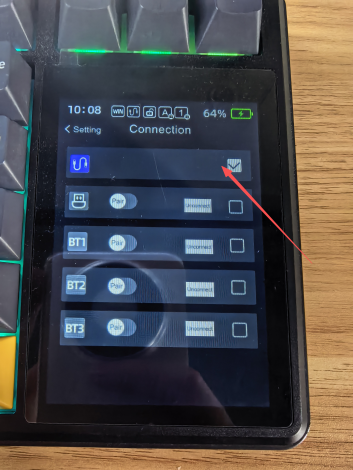
Warning: Do not disconnect the keyboard or power off your computer during the update process.
Part 1: Update the Keyboard Firmware
Step 1: Connect Your Keyboard
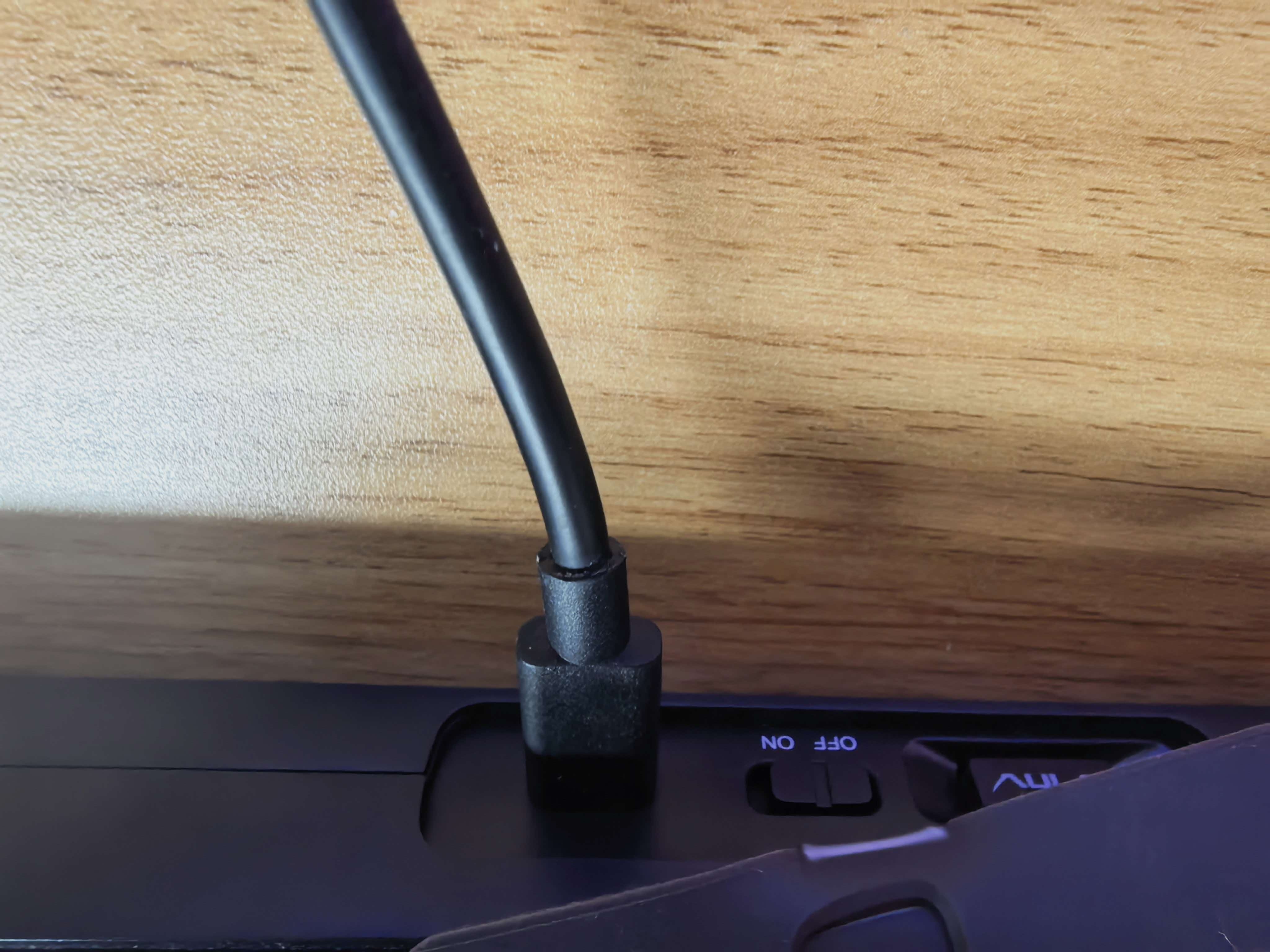
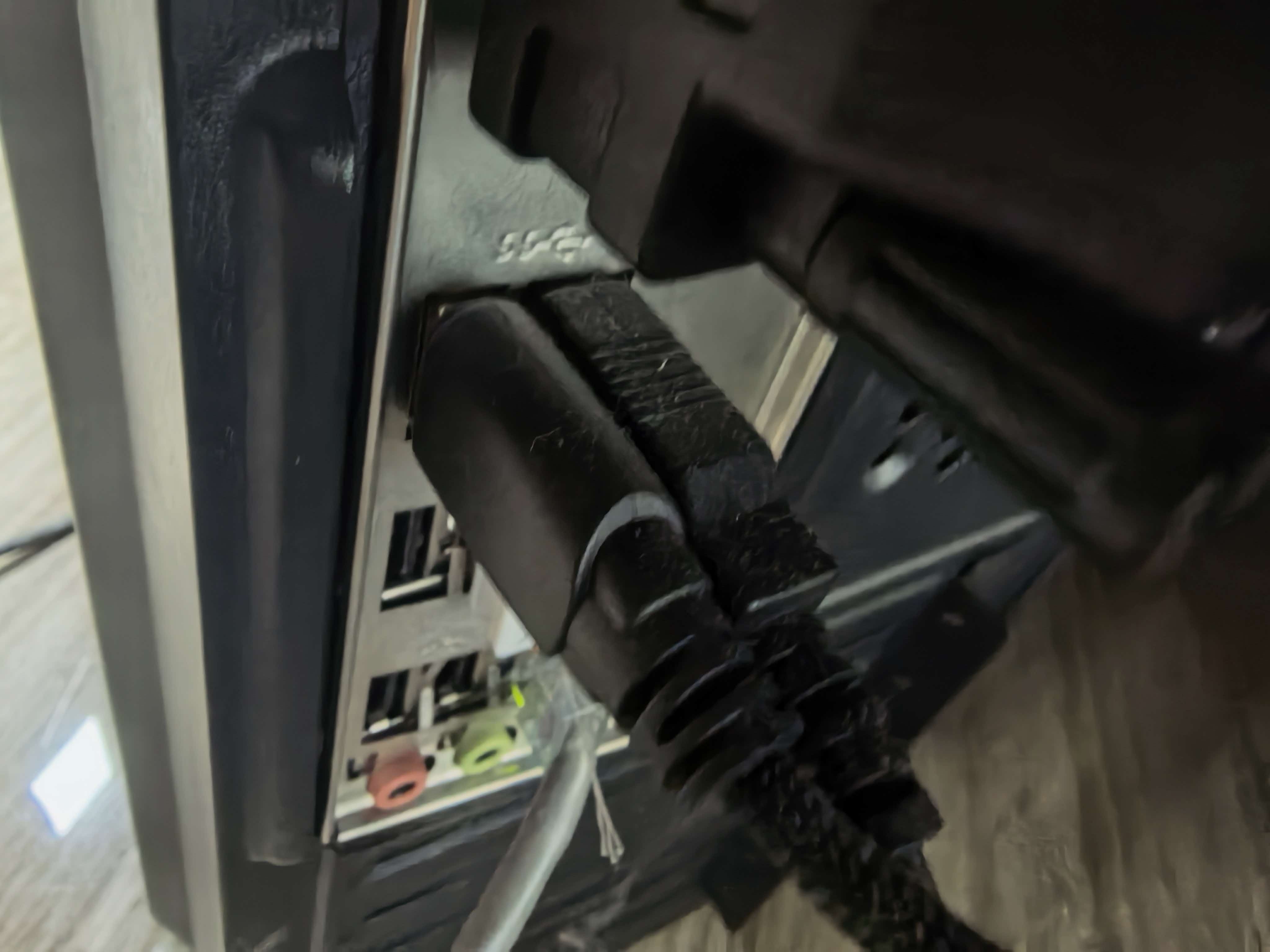
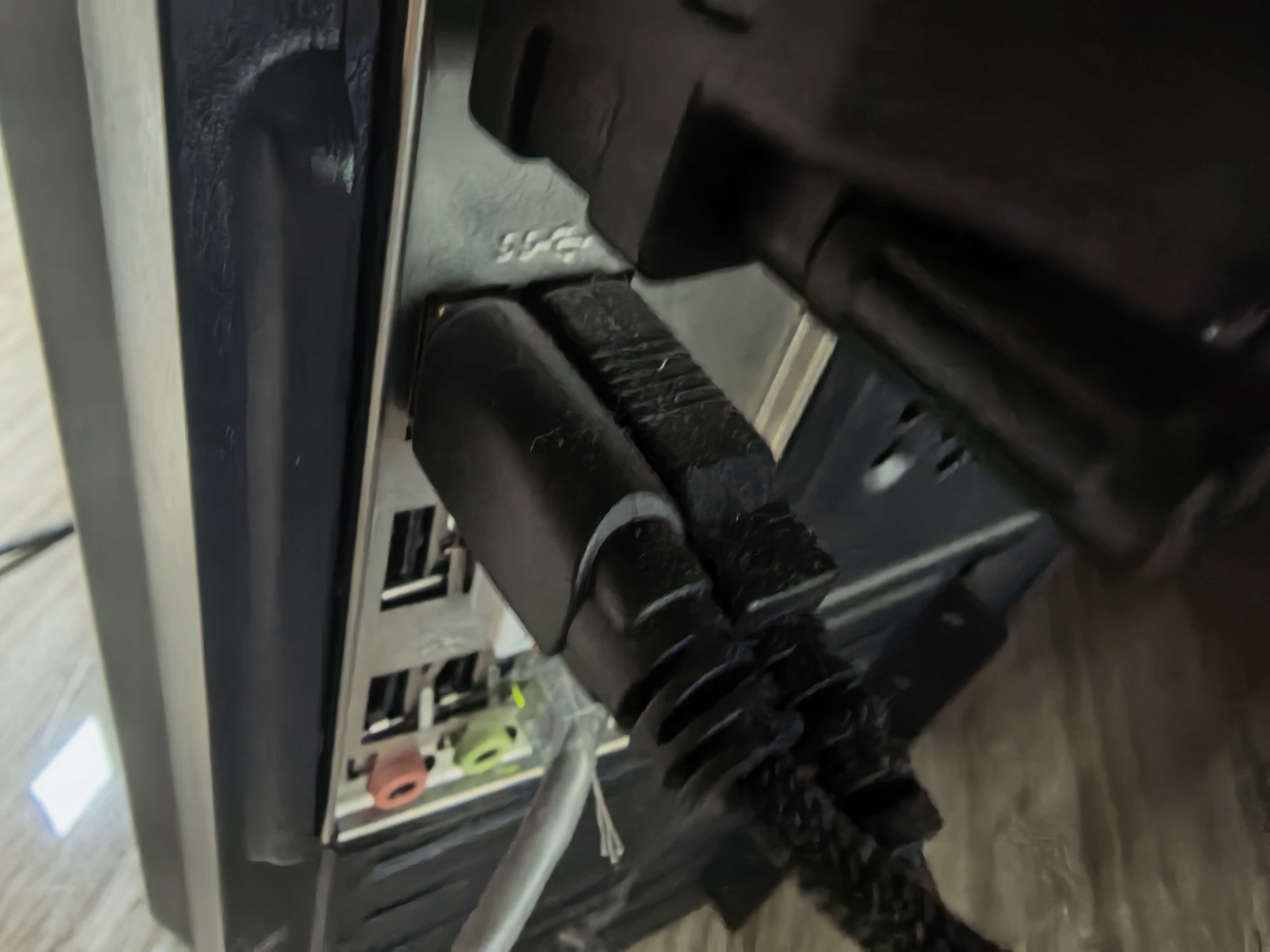
Connect the USB-A end of the cable to your computer and the USB-C end to your keyboard.
Step 2: Extract the Firmware Package
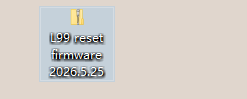
Locate the downloaded firmware archive (for example, "L99 reset firmware 2026.05.25") and extract it to a folder on your computer.
Step 3: Launch the Firmware Tool
Open the extracted folder and double-click the L99 Keyboard Reset Firmware Update tool.

Step 4: Start the Update
Click START to begin updating the keyboard firmware.
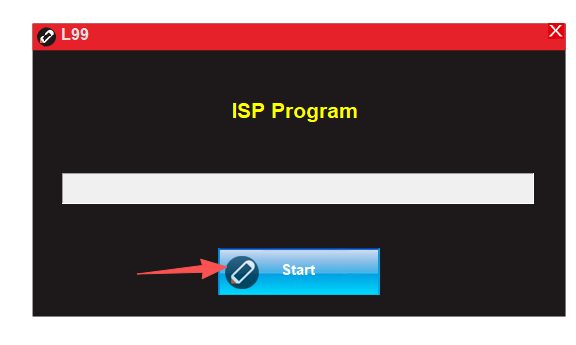
Step 5: Wait for Completion
Wait for the flashing process to finish fully.
Once completed, close the update tool. Your keyboard firmware has now been successfully updated.
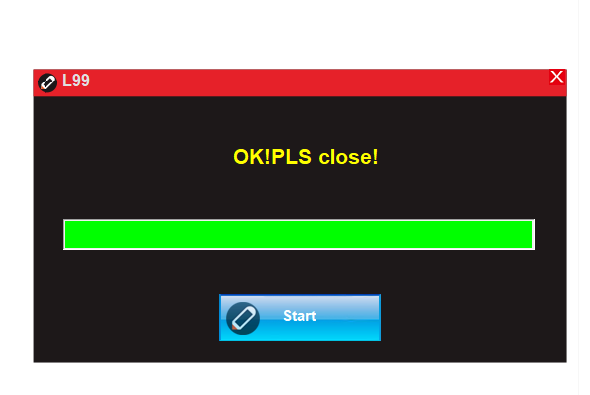
Part 2: Update the Screen Firmware
After the keyboard firmware update is complete, continue with the screen firmware.
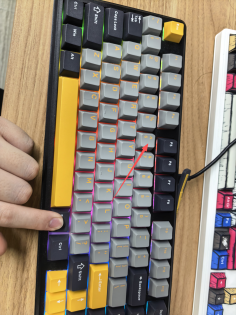
Step 1: Enter Screen Update Mode
On your keyboard, hold down the FN key, then press:
X → 0 → 6
This will enter Screen Update Mode.
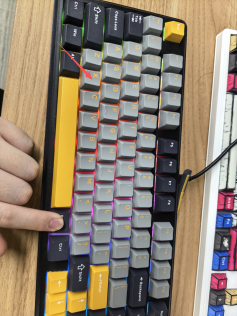
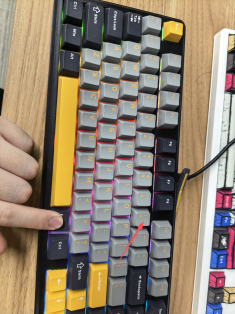
Step 2: Launch the Screen Firmware Tool
Double-click the Screen Firmware Update application inside the firmware folder.

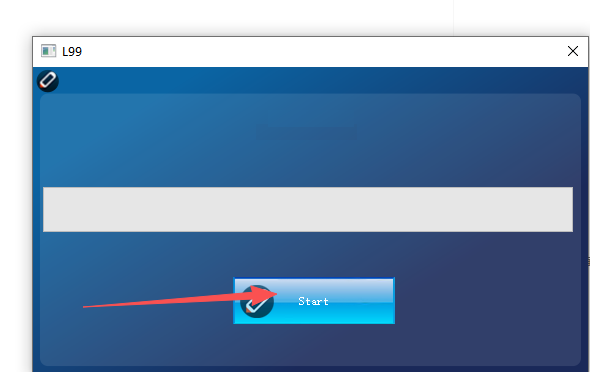
Step 3: Begin the Update
Click START to begin updating the screen firmware.
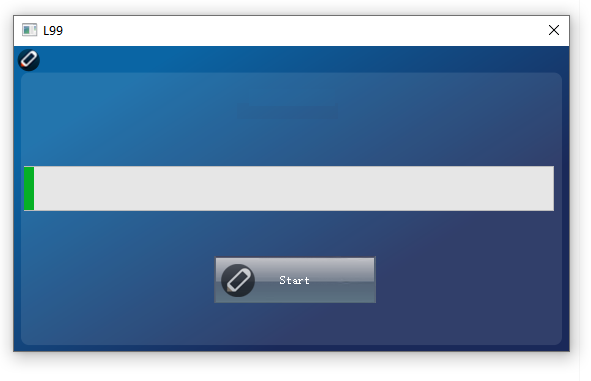
Step 4: Wait for the Update
The L99 screen firmware update takes approximately 10 minutes.
Do not disconnect the keyboard or close the application during this time.
Step 5: Reconnect the Keyboard
After the update finishes:
Close the firmware application.
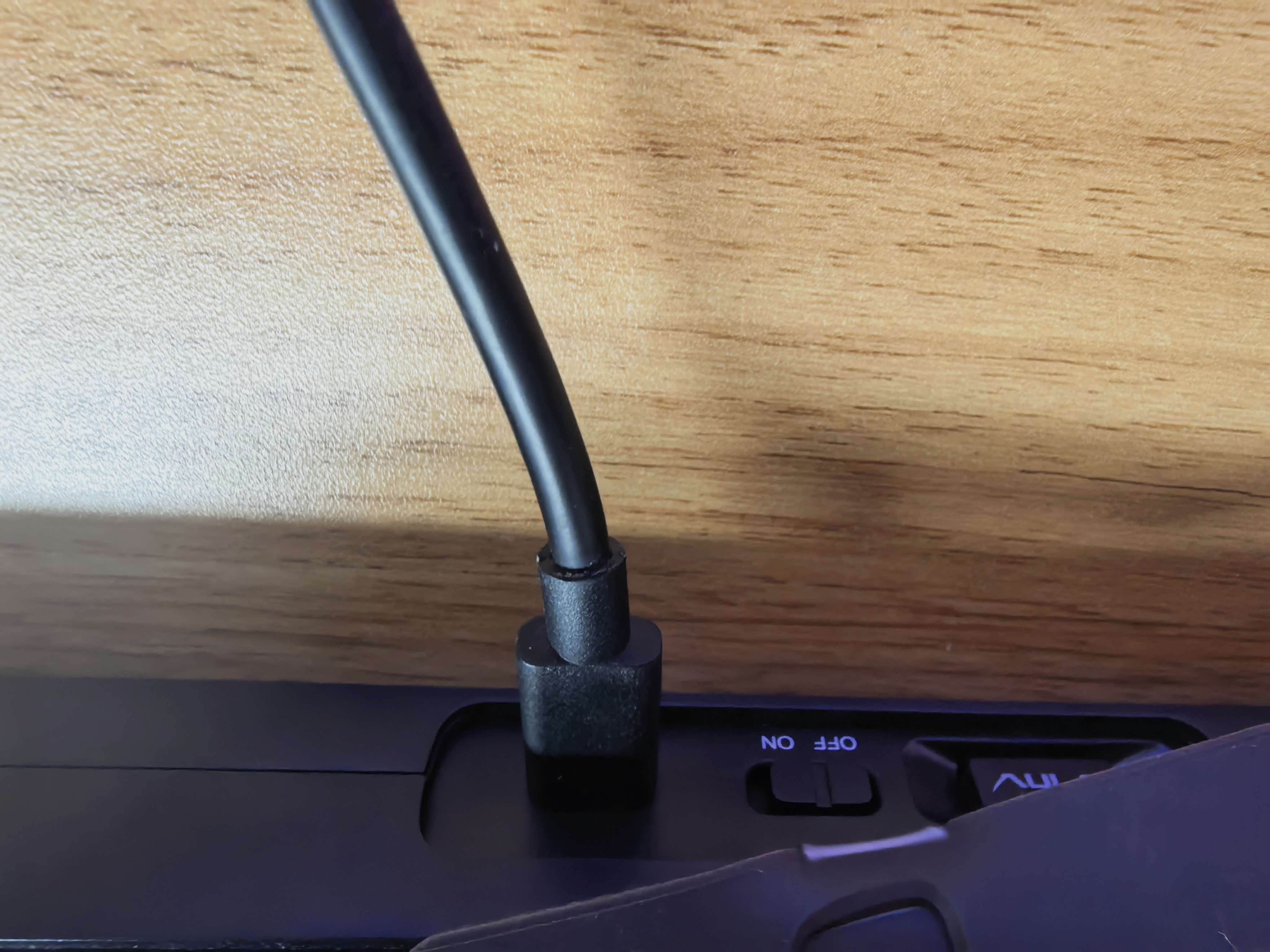
Unplug the USB cable from the keyboard.
Reconnect the cable to the keyboard.
Step 6: Verify the Update
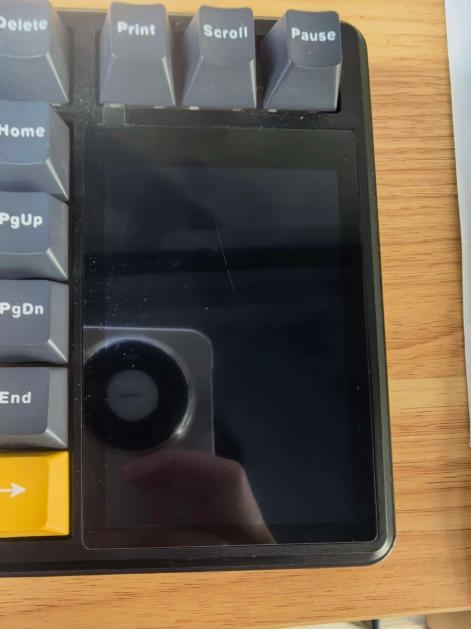
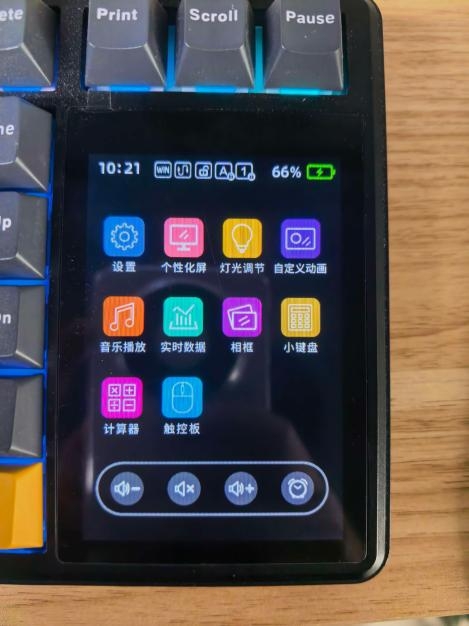
Once reconnected, the keyboard display will change from dim to bright, indicating that the screen firmware update has completed successfully.
Troubleshooting
The firmware tool doesn't detect my keyboard.
Ensure the keyboard is connected via USB.
Try another USB port.
Avoid using USB hubs if possible.
Close any software that may be accessing the keyboard.
The update appears stuck.
The screen firmware update may take up to 10 minutes. Please wait until the process completes before taking any action.
Can I disconnect the keyboard during the update?
No. Interrupting the update may result in incomplete firmware installation and may brick your keyboard. Always wait until the software indicates that the update has finished.
Keep Your AULA Keyboard Up to Date
Firmware updates help ensure optimal performance, improved compatibility, and access to the latest feature enhancements.
We recommend checking for new firmware releases regularly to keep your AULA keyboard operating at its best.
Happy Gaming!
THE AULA TEAM!