How to Update AULA L99 Keyboard Firmware: Complete Step-by-Step Guide
Keeping your keyboard firmware updated is one of the best ways to maintain stable performance and improve your gaming experience. The latest AULA L99 keyboard firmware can enhance device compatibility, fix known issues, improve screen performance, and optimize overall keyboard functionality. If you are experiencing connection issues, display problems, or performance instability with your AULA L99 mechanical keyboard, updating the firmware is usually the first recommended solution. This guide explains how to complete the AULA L99 firmware update, including both the keyboard firmware and display firmware update process.

Why Should You Update Your AULA L99 Keyboard Firmware?
Firmware works as the internal software that controls how your keyboard communicates with your computer and manages its hardware features.
Regular AULA keyboard firmware updates can help:
Benefit
Description
Improve Stability | Optimize keyboard performance and connection reliability |
Fix Known Issues | Resolve software or compatibility problems |
Enhance Display Function | Improve screen response and brightness performance |
Improve Compatibility | Ensure better support with Windows systems |
Access New Features | Enable future firmware improvements |
Keeping your AULA L99 keyboard firmware updated ensures your device continues delivering the best gaming experience.
Before Updating AULA L99 Firmware
Before starting the firmware installation, prepare the following:
A Windows PC
A downloaded AULA L99 firmware package
A USB cable for a stable wired connection
Around 10–15 minutes to complete the update
Important:
Do not disconnect your AULA L99 keyboard or shut down your computer during the firmware update process. Interrupting the installation may cause update failure.
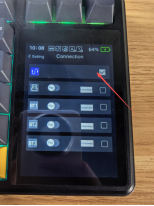
Part 1: How to Update AULA L99 Keyboard Firmware
Step 1: Connect Your AULA L99 Keyboard
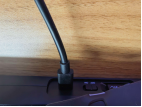
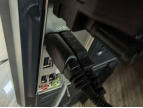
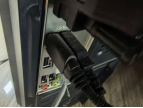
Connect the USB-A connector to your computer and connect the USB-C connector to your keyboard. For a stable AULA L99 firmware update, avoid using wireless mode or USB hubs during the process.
Step 2: Extract the Firmware Package
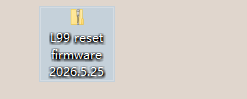
Locate the downloaded firmware file, such as:
"L99 Reset Firmware 2026.05.25"
Extract the firmware package to a folder on your Windows computer.
Inside the folder, you will find the required AULA keyboard firmware update tool.
Step 3: Open the Firmware Update Tool
Open the extracted folder and launch:
L99 Keyboard Reset Firmware Update Tool
Make sure your keyboard is connected correctly before starting the software.

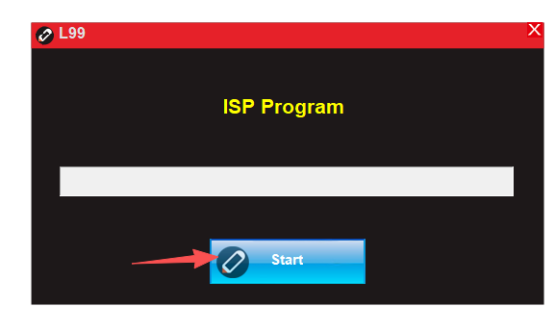
Step 4: Start the Keyboard Firmware Update
Click the START button to begin installing the new firmware.
The software will automatically update the keyboard firmware.
Step 5: Complete the Firmware Installation
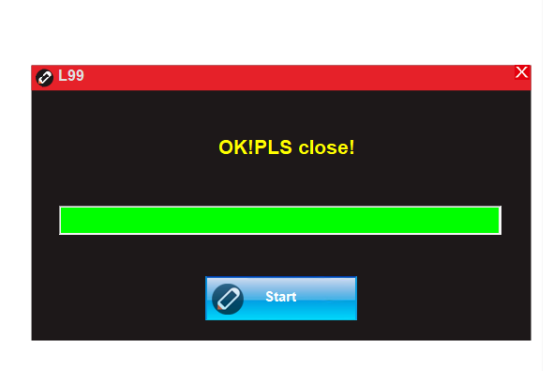
Wait until the flashing process finishes completely.
After the update is completed:
Close the firmware update tool.
Continue with the screen firmware update process.
Your keyboard firmware has now been successfully updated.
Part 2: How to Update AULA L99 Screen Firmware
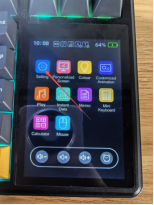
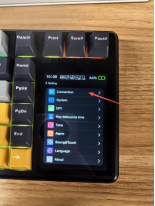
The AULA L99 features a built-in display, which requires a separate screen firmware update.
Follow these steps carefully.
Step 1: Enter Screen Update Mode
On your keyboard:
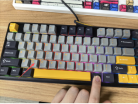
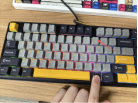
Press and hold FN, then press:
X → 0 → 6
The keyboard will enter screen firmware update mode.
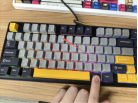
Step 2: Open the Screen Firmware Update Tool
Open the firmware folder and launch:
Screen Firmware Update Application

Step 3: Start the Screen Firmware Update
Click START to begin updating the keyboard display firmware.
The update process usually takes around 10 minutes.
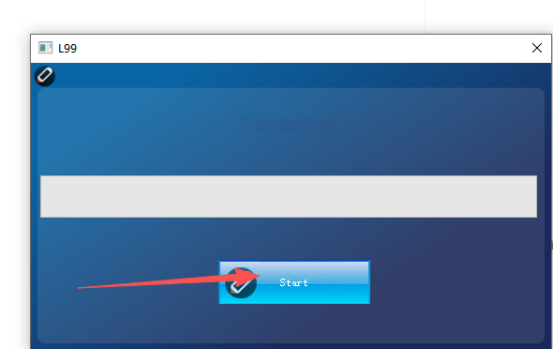
Step 4: Wait Until the Update Finishes
During the AULA L99 screen firmware update, do not:
Disconnect the USB cable
Close the update software
Turn off your computer
Wait until the process completes.
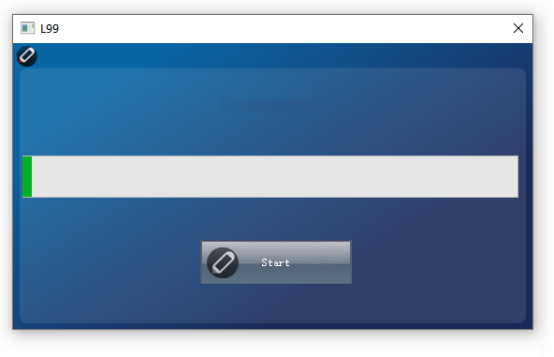
Step 5: Reconnect Your Keyboard
After the update finishes:
Close the firmware application.
Disconnect the USB cable.
Reconnect the keyboard.
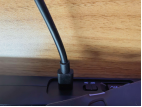
Step 6: Confirm the Firmware Update
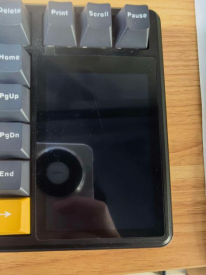
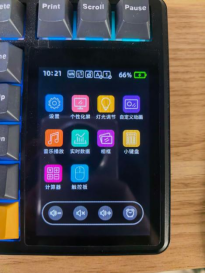
After reconnecting, the keyboard display brightness will change from dim to bright.
This indicates that the AULA L99 screen firmware update has been completed successfully.
Troubleshooting AULA L99 Firmware Update Issues
The Firmware Tool Cannot Detect My Keyboard
Try the following solutions:
Confirm the keyboard is connected through USB
Try another USB port
Avoid USB hubs
Close other keyboard-related software
The Firmware Update Seems Stuck
The screen firmware update may take up to 10 minutes.
Do not interrupt the process unless the software shows an error message.
Can I Disconnect My AULA L99 Keyboard During the Update?
No.
Disconnecting the keyboard during firmware installation may cause incomplete firmware flashing and prevent the keyboard from working properly.
Always wait until the update tool confirms completion.
Keep Your AULA L99 Keyboard Performing at Its Best
Regular firmware updates help maintain your keyboard’s performance, improve compatibility, and provide a smoother gaming experience.
By keeping your AULA L99 keyboard firmware and screen firmware updated, you can ensure your keyboard continues working reliably with the latest optimizations.
For the best performance, check for new AULA keyboard firmware updates regularly and keep your gaming setup ready.
Happy Gaming!
THE AULA TEAM